Article -> Article Details
| Title | Revit to Excel Workflow for Quantity Takeoffs |
|---|---|
| Category | Business --> USA |
| Meta Keywords | Export Revit Schedule To Excel |
| Owner | Craig Dodge |
| Description | |
|
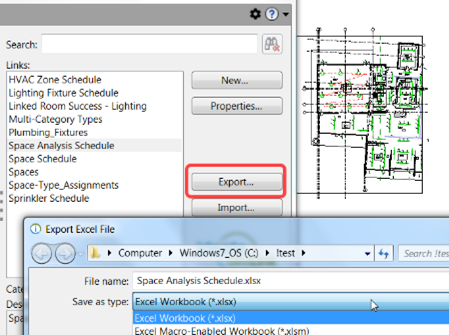
Quantity takeoffs are one of the most powerful uses of BIM, and Revit sits right at the center of that process. When set up correctly, Revit can generate accurate quantities directly from the model, reducing manual errors and saving huge amounts of time. However, many teams still rely on Excel to review, organize, and share quantity data. Understanding how to move data smoothly from Revit to Excel is essential for efficient takeoffs. This guide walks through a practical Revit to Excel workflow for quantity takeoffs, explaining how to get clean data, avoid common mistakes, and make the most of both tools. Why Use Excel for Quantity Takeoffs?Excel remains a universal language in construction and design. Contractors, estimators, project managers, and clients are all comfortable working with spreadsheets. While Revit is excellent for creating and managing model-based data, Excel offers flexibility for calculations, formatting, and reporting. Using Excel for quantity takeoffs allows teams to apply formulas, create summaries, and integrate cost data more easily. It also makes collaboration simpler, especially when working with external partners who may not have access to the Revit model. Combining Revit’s accuracy with Excel’s flexibility creates a workflow that is both reliable and easy to manage. Preparing the Revit Model for Accurate QuantitiesA successful quantity takeoff starts with a well-prepared model. If the model is inconsistent or incomplete, exporting data will only highlight those problems. Elements must be modeled correctly, assigned to the right categories, and have consistent parameters. Shared parameters are especially important when quantities need to be grouped, filtered, or sorted later in Excel. Before exporting anything, it is worth reviewing schedules inside Revit to confirm that the quantities shown match expectations. This step helps catch modeling issues early and ensures that the exported data reflects the real design intent. Creating Revit Schedules for TakeoffsRevit schedules are the foundation of any quantity takeoff workflow. They allow you to pull specific data directly from the model and organize it in a structured way. For quantity takeoffs, schedules typically include element type, dimensions, count, area, volume, or length, depending on the trade. Adding calculated values inside Revit can also help reduce the amount of work needed later in Excel. Clear naming conventions and consistent formatting make schedules easier to understand once they are exported. The more organized the schedule is in Revit, the cleaner the spreadsheet will be in Excel. How to Export Revit Data to ExcelOnce schedules are ready, the next step is to move the data into Excel. The most common and straightforward method is to Export Revit Schedule To Excel using Revit’s built-in export tools. This process creates a spreadsheet that mirrors the schedule layout, including columns, headers, and values. While basic formatting may need adjustment, the core data remains intact. For larger projects, it is important to check units and rounding settings to ensure that quantities remain consistent between Revit and Excel. A quick comparison between the two helps confirm that nothing was lost or altered during export. Organizing Quantity Data in ExcelAfter exporting, Excel becomes the main environment for analysis. Here, quantities can be sorted, filtered, and grouped to match estimating or reporting needs. Excel formulas allow users to calculate totals, apply waste factors, or link quantities to unit costs. Pivot tables are especially useful for summarizing large datasets and creating trade-specific breakdowns. At this stage, it is important to avoid manually editing quantities. Any changes should be made in the Revit model and re-exported to maintain data accuracy and traceability. Managing Design Changes and UpdatesDesign changes are inevitable, especially as projects move from early design to construction documentation. A strong Revit to Excel workflow accounts for these changes without creating confusion. When updates occur, schedules should be refreshed in Revit and exported again to Excel. Version control is critical to avoid mixing old and new data. Understanding how to Manage Revisions Revit helps teams track what changed and when. This clarity makes it easier to explain quantity adjustments to stakeholders and ensures that estimates stay aligned with the latest design. Common Challenges in Revit to Excel TakeoffsOne of the most common challenges is inconsistent data caused by poor modeling practices. Missing parameters, incorrect categories, or duplicate elements can distort quantities. Another issue is over-formatting schedules in Revit. While presentation is important, excessive formatting can create unnecessary complexity when exporting to Excel. Large models can also lead to performance issues during export. In such cases, breaking schedules into smaller, trade-specific exports can improve reliability and clarity. Recognizing these challenges early allows teams to refine their workflow and avoid costly mistakes later. Best Practices for a Reliable WorkflowConsistency is the key to a reliable Revit to Excel workflow. Standardized templates, shared parameters, and clear modeling guidelines help ensure that quantity data remains accurate throughout the project lifecycle. Regular coordination between designers and estimators improves alignment and reduces rework. Clear communication about how quantities are generated and updated builds trust in the data. Finally, always treat Excel as a reporting and analysis tool, not a data editing platform. Revit should remain the single source of truth, with Excel serving as a flexible extension of the model. Why This Workflow Matters for Modern ProjectsIn modern construction and design, speed and accuracy are non-negotiable. Manual takeoffs are time-consuming and prone to error, while disconnected workflows create confusion. A well-structured Revit to Excel workflow bridges the gap between BIM and real-world decision-making. It allows teams to move quickly, respond to design changes, and deliver reliable quantity information to everyone involved. When done correctly, this workflow saves time, reduces risk, and strengthens collaboration across the entire project team. It turns the Revit model into a true data asset and makes quantity takeoffs more efficient than ever. | |